

How to set up real-time transaction notifications from Intuit Intelligence in QuickBooks Online

We mentioned a new automation available through the Accounting Agent in QuickBooks Online in our last article, which was a comprehensive overview of all the new updates to Intuit Intelligence in 2025: real-time purchase notifications.
Quick heads up: Intuit Intelligence used to be called Intuit Assist
We dug a little deeper to find out how QuickBooks Online users can take advantage of this feature, and here’s what we found:
Real-Time Purchase Notifications are Only Available to Mastercard and QBO Users
First: this feature is currently ONLY available to QBO users with a business Mastercard–and even still, does not apply to Mastercards issued by Wells Fargo or Goldman Sachs (including the Apple Card). At this time, there isn’t any additional information about if–or when–these instantaneous purchase notifications will be available to other credit cards like Visa, AmEx, or Discover.
The Benefit of Real-Time Purchase Notifications from Intuit Intelligence (formerly Intuit Assist)
For Mastercard and QBO users who make a substantial amount of company purchases by credit card, this feature could help you close the loop on missing receipts. When you activate the real-time purchase notification feature in QBO, you’ll receive an immediate text message notification about the purchase. You can then reply with an image of the receipt, and your QBO Accounting Agent will take care of matching the receipt to the corresponding transaction in QuickBooks.
How to Set Up Real-Time Purchase Notifications for Mastercard transactions in QuickBooks Online
The process is pretty straightforward. First, open QuickBooks Online and navigate to Expense Transactions by clicking the Expenses and Bills button on your dashboard (you can also find Expense Transactions in the lefthand menu, from other displays in QBO).
Then, look for a Purchase Notification button in the top center of your screen and click it.

From there, you’ll see a pop-up as follows:
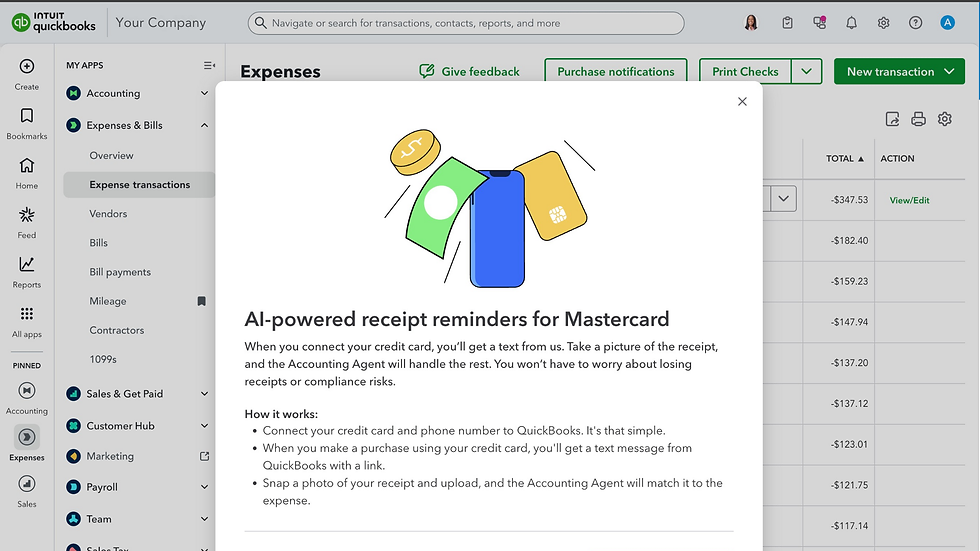
Follow the prompts on each slide of the pop-up, and that’s it!
Once your credit card is connected, you’ll get a text from QuickBooks whenever a purchase has been made using your card. You can then take a picture of the receipt, and the Accounting Agent will handle the rest.
What’s the Difference Between this Feature and the ‘Snap Receipt’ feature in the QBO Mobile App?
The difference between the Real-Time Purchase Notification and the ‘Snap Receipt’ feature available to all QBO users with the mobile app is minor: The Real-Time Purchase Notification is an instantaneous way for Mastercard users to record a receipt–no further action needed.
The ‘Snap Receipt’ feature in the app is a little more manual; you must remember, on your own, to snap an image of your receipt. While QuickBooks can usually attach the receipt to the correct transaction, there will be times when you have to navigate to Accounting > Choose Receipts > Select the For Review tab and manually review and tag receipts to specific transactions.
Overall, it’s a subtle improvement that can help further automate your reconciliation process.


Comments